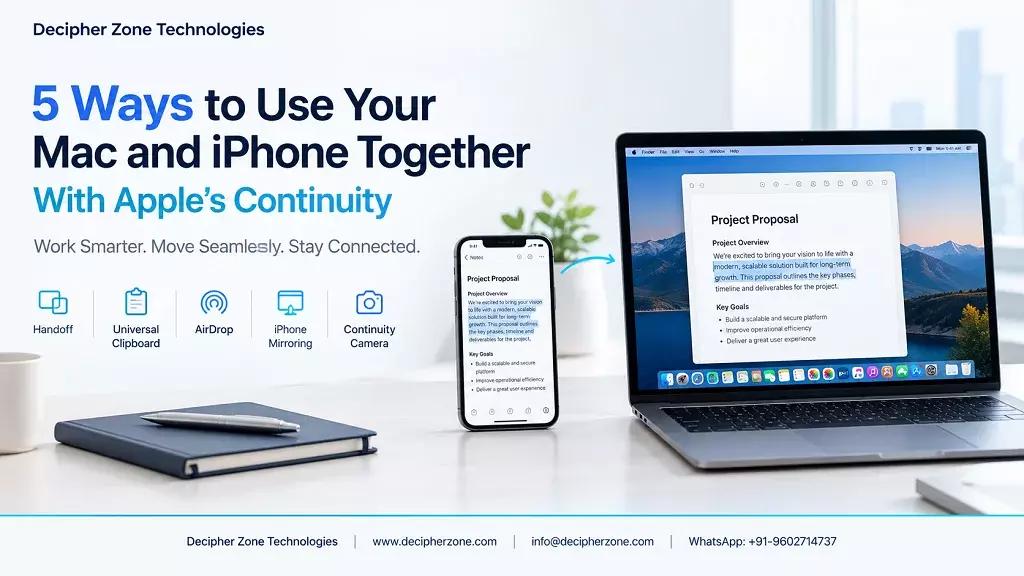
Using a Mac and an iPhone together doesn’t mean you have to send links to yourself or constantly switch between screens. Apple’s Continuity features are designed to let these two devices work together while still keeping your apps and workflows familiar. Depending on the feature, you can copy content from one device to another, resume an unfinished task, transfer a file, or use your iPhone as a webcam for your Mac.
This comes in handy in everyday situations, not just in technical workflows. A student can start searching for info on an iPhone and then continue writing on a Mac. A professional can switch from a message to the larger screen of a Mac with no need to start the task from scratch. A user working with photos or presentations can transfer content with no need to resort to email or cloud storage for every small exchange.
1. Universal Clipboard. Copy and Paste
Apple describes this feature as working just like regular copy and paste, except that the clipboard can be used across nearby Apple devices. If you want to copy and paste data from your iPhone to your Mac, you don’t need to open a separate clipboard app:
-
Copy the content on your iPhone and switch to your Mac,
-
Place the cursor where you want the content to appear,
-
Paste it as usual using the Command-V shortcut.
For Universal Clipboard to work, both devices must be signed in with the same Apple ID. Wi-Fi, Bluetooth, and Handoff must also be enabled. The devices must also be within about 10 meters of each other.
The Universal Clipboard doesn't sync the entire data set of an app. It simply transfers supported copied content between compatible devices. That's why issues with your Outlook account, contacts, or email syncing may require you to check the relevant account or service settings, rather than the Continuity feature itself.
2. Handoff. Pick Up Where You Left Off
You can open a web page in Safari on your iPhone while commuting to work, then continue reading it on your Mac once you sit down at your desk. The same principle applies to FaceTime, Maps, Mail, Calendar, Pages, Numbers, Keynote, and Reminders.
On a Mac, the Handoff icon appears in the Dock when there’s a compatible task you can continue. On an iPhone, the corresponding option appears in the app switcher. So, Handoff lets you pick up where you left off on another device.
For Handoff to work, devices must be nearby, signed in to the same Apple ID, and have Wi-Fi and Bluetooth turned on. Apple notes that VPN settings that block local network traffic may interfere with some Continuity features.
Keep useful info on both devices
Continuity works best when the info you need is already available where you expect it to be. Contacts are a good example. You use them for calls, messaging, email, and other everyday tasks. If you want to sync contacts from your iPhone to your Mac, iCloud can keep your address book up to date on both devices. If the Contacts feature in iCloud is enabled on your iPhone and Mac, changes made on one device will appear on the other. In some cases, you can also use a USB cable to manually sync contacts.
AirDrop is convenient when you need to transfer just a single contact, rather than maintaining a fully synced address book. This distinction matters because Continuity isn’t the only synchronization system. Handoff, iCloud, AirDrop, and other Apple features serve different purposes. Knowing which one is best suited for a specific task is often more useful than just trying to get all your data to appear everywhere.
3. AirDrop. Send Files and Photos
AirDrop is better when the info you want to share is a file. You can send photos, videos, docs, web pages, locations, and other content between nearby Apple devices. Usually, both devices need to have Wi-Fi and Bluetooth turned on. The receiving device must have AirDrop enabled to accept transfers. If your iPhone and Mac use the same Apple ID, transfers between them are automatically accepted and saved.
AirDrop is especially useful for occasional data sharing because it simplifies the process without turning every file into a time-consuming synchronization task.
4. iPhone Mirroring. Using iPhone Apps
iPhone Mirroring expands connectivity options, allowing a compatible Mac to control an iPhone from the Mac. If this feature is available, users can interact with iPhone apps and receive iPhone alerts and Live Activities on their Mac. This is useful when the iPhone is nearby, but reaching for it would interrupt your work.
iPhone Mirroring requires iOS 18 or later on the iPhone and macOS 15, as well as the same Apple ID, Wi-Fi, Bluetooth, and proximity between the devices. Apple also specifies minimum hardware requirements.
5. Continuity Camera. Turn Your iPhone Into a Webcam for Your Mac
Newer Mac models don’t necessarily need to be connected to a separate webcam for video calls. The Continuity Camera feature allows a compatible iPhone to function as a webcam and microphone for your Mac. The connection can be wireless or via USB.
Both devices must use the same Apple ID with two-factor authentication. For a wireless connection, Wi-Fi and Bluetooth must be turned on.
A practical benefit is that you can position your iPhone so that its rear camera is facing you, granting your Mac access to that camera during supported video calls. This is useful for remote meetings, pitches, and situations where it’s important to show the presenter as well as the materials being presented.
Apple also supports extra video features in compatible setups, but individual effects may have their own hardware and software requirements.

What You Need to Use Continuity Features
The exact requirements vary based on the feature, but some conditions are common to all. Generally, your Mac and iPhone need:
-
Compatible operating systems and hardware,
-
A single Apple ID,
-
Wi-Fi and Bluetooth turned on.
Some features also require Handoff, two-factor authentication, or physical proximity between devices. Check these requirements before troubleshooting. Apple updates Continuity capabilities as iOS and macOS evolve. Stay up to date on iOS news to understand why a particular feature might work differently after an operating system update.
The real benefit of Continuity isn’t any one impressive feature. It’s the reduction of small interruptions. That means fewer reloads and fewer manual transfers. It also means fewer screen switches and less time spent recreating work that already exists on another device.